

- Component API (Recommended)
- Legacy API
Auto Binding in the Inspector
The simplest way to use data binding is through the Unity Inspector. The Rive Widget component includes a Data Binding Mode setting that offers three options: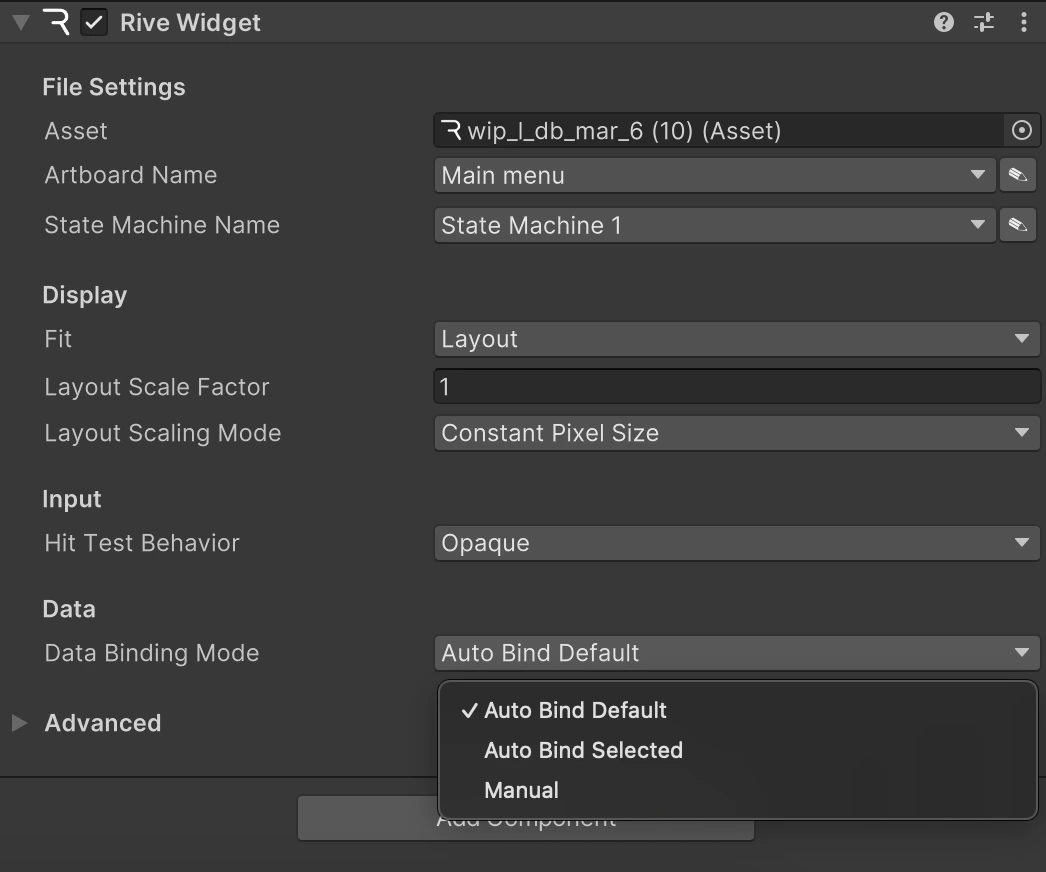
- Auto Bind Default: Automatically binds the default view model instance (marked as “Default” in the Rive editor)
- Auto Bind Selected: Lets you select a specific instance from a dropdown
- Manual: Requires you to set up binding through code (see the Data Binding documentation for details)
Working with Data Binding
Once your Rive Widget is bound to a view model instance, you can access and modify its properties from your C# scripts.For the full data binding API (including detailed ViewModel property types, lists, and artboard binding), see the runtime data binding documentation:Data Binding Fundamentals
View model concepts, property types, lists, artboards, and runtime examples across platforms.